![fieldconnect-logo-1000x118-light-bg.png]](https://knowledge.fieldconnect.com/hs-fs/hubfs/fieldconnect-logo-1000x118-light-bg.png?height=25&name=fieldconnect-logo-1000x118-light-bg.png)
Applies to: FieldGateway integrated with Vista
Audience: Supervisors, service coordinators, and office staff
Overview
Use Time Management → Add Work Order Labor to enter labor for a technician against a work order and scope. Review saved entries in the record grid.
This example uses the Hours entry fields shown in the Vista environment.
1. Select the technician and pay period
- Select Time Management in the navigation bar.
- Under Show, select Groups.
- Select the appropriate group.
- Select the Technician.
- Review Pay Period Start and the From and To dates.
- Select Load List.
You can also select Crew Leaders to locate a technician through a crew leader’s list.
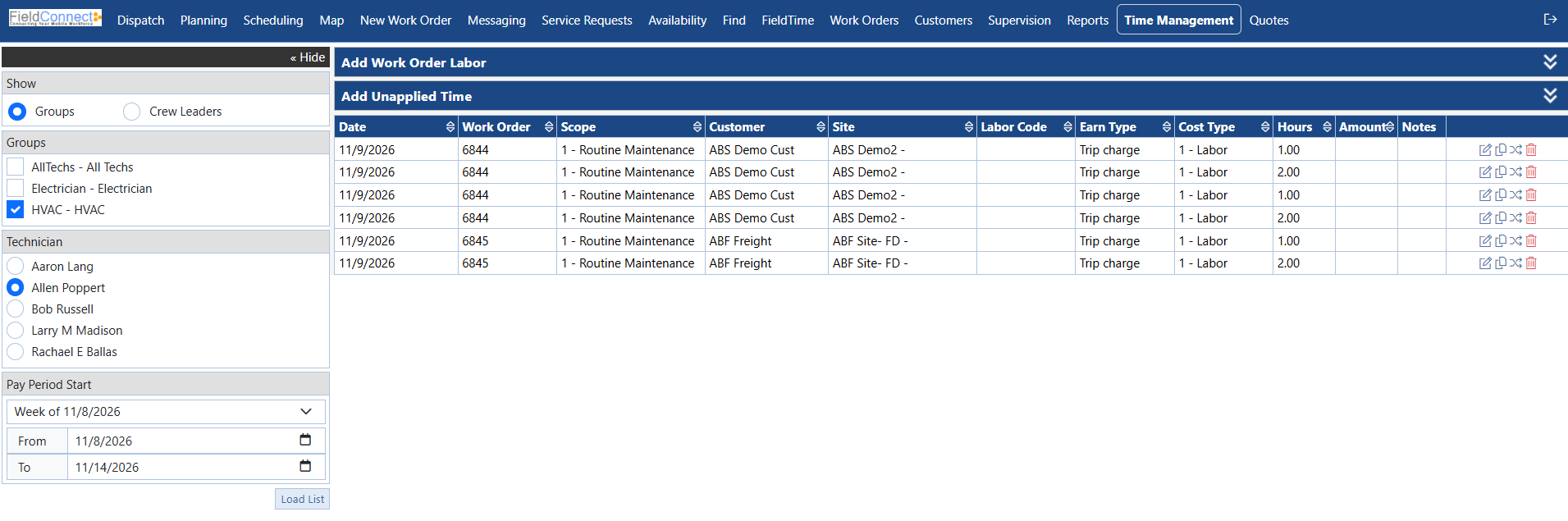
Figure 1. Select the technician and pay period, then load the time entries.
2. Select the work order and scope
- Expand Add Work Order Labor.
- Confirm the Technician displayed at the top.
- Select the work order under Work Orders Assigned.
- Leave Use This Work Order in Other Work Orders unchecked when using the assigned work order.
- Confirm the Selected Work Order displayed below.
- Select the appropriate Scope.
The Other Work Orders section provides a Find field and a separate work order dropdown for locating other work orders. Always confirm Selected Work Order before entering labor.
In this example, the selected work order is 6845 – ABF Freight, with scope 1: Routine Maintenance.
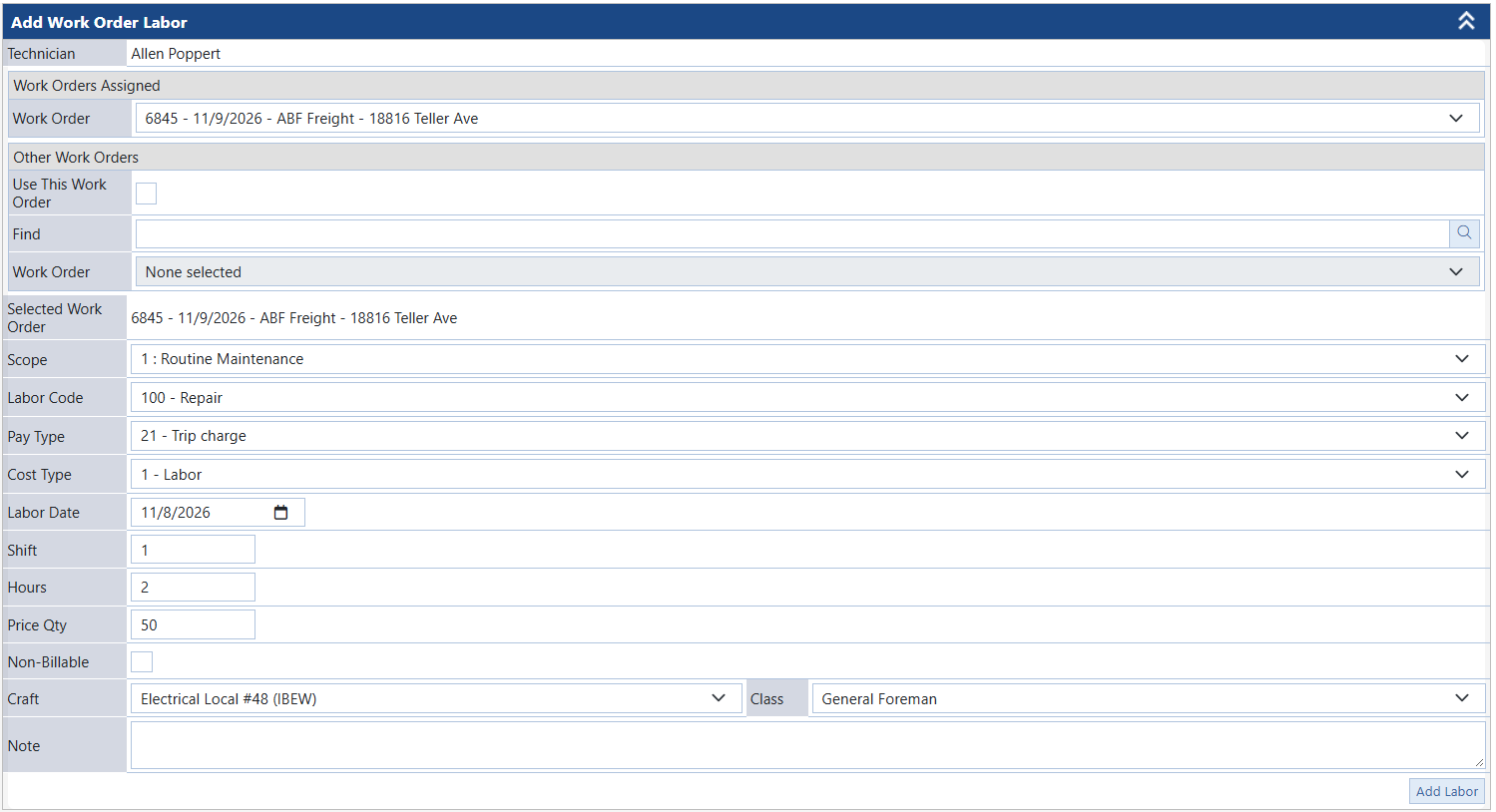
Figure 2. Confirm the selected work order and scope before adding labor.
3. Enter the labor details
Complete the applicable fields:
| Field | Action |
|---|---|
| Labor Code | Select the code for the work performed. |
| Pay Type | Select the appropriate pay type. |
| Cost Type | Select the applicable cost type. |
| Labor Date | Enter the date the work was performed. |
| Shift | Review the shift value. |
| Hours | Enter the labor hours. |
| Price Qty | Review and enter the applicable quantity. |
| Non-Billable | Select when the entry should be non-billable. |
| Craft / Class | Review the applicable craft and class. |
| Note | Enter supporting notes as needed. |
The tested example uses:
- Technician: Allen Poppert
- Work Order: 6845
- Scope: 1 – Routine Maintenance
- Labor Code: 100 – Repair
- Pay Type: 21 – Trip charge
- Cost Type: 1 – Labor
- Labor Date: November 8, 2026
- Hours: 2
Choose coding appropriate to your work and company configuration.
4. Save the labor
Review the selected technician, work order, scope, date, hours, and coding. Select Add Labor.
After saving, FieldGateway displays:
“Labor added successfully”

Figure 3. FieldGateway confirms that the labor was added.
5. Verify the saved entry
Review the record grid and confirm the date, work order, scope, customer, site, labor code, earn type, cost type, and hours.
In this example, the saved row shows:
- Date: November 8, 2026
- Work Order: 6845
- Scope: 1 – Routine Maintenance
- Labor Code: 100 – Repair
- Earn Type: Trip charge
- Cost Type: 1 – Labor
- Hours: 2.00

Figure 4. Verify the saved labor entry against the correct work order and scope.
Things to know
- Confirm the technician before entering labor, especially after switching between Groups and Crew Leaders.
- Review Selected Work Order rather than relying only on the work order dropdown.
- Labor is associated with a scope. Confirm both the work order and scope before saving.
- Available time-entry fields can vary by configuration; this example shows entry by hours.
- The record grid can contain both work order labor and entries labeled Unapplied Time.