![fieldconnect-logo-1000x118-light-bg.png]](https://knowledge.fieldconnect.com/hs-fs/hubfs/fieldconnect-logo-1000x118-light-bg.png?height=25&name=fieldconnect-logo-1000x118-light-bg.png)
Pre requisites to integrate QuickBooks data using Connector:
- QuickBooks installed on local/remote machine:
- Following software should be installed on machine on which you are going to host and run Connector.
- QuickBooks SDK 13.0 (qbsdk130.exe)
- Remote Data Service Client (RDS6ClientInstaller.exe). You will find this installer under following path once you have installed QuickBooks SDK.
C:\Program Files (x86)\Intuit\IDN\QBSDK13.0\tools\installers
- Following software should be installed on machine on which you have installed QuickBooks:
- Remote Data Service Server (RDS6ServerInstaller.exe). You will find this installer under following path once you have installed QuickBooks SDK.
C:\Program Files (x86)\Intuit\IDN\QBSDK13.0\tools\installers
- Installation and Configuration of RDS Server:
NOTE: the server application will only run under the account it was installed with!! Also, the server application is a GUI app and will need to be running all the time (with the session logged in from the console, not from a RDP session) or the connector will not be able to communicate with QuickBooks.
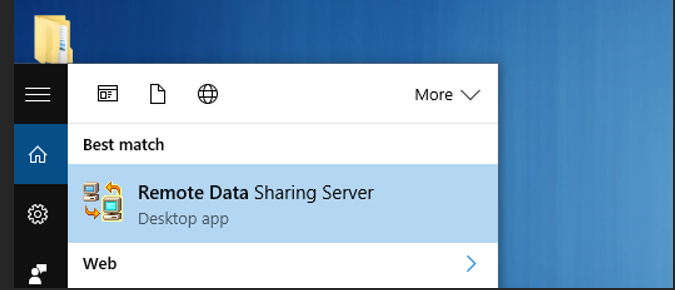
- Once you have installed RDS Server (machine on which QuickBooks is installed), open RDS server.
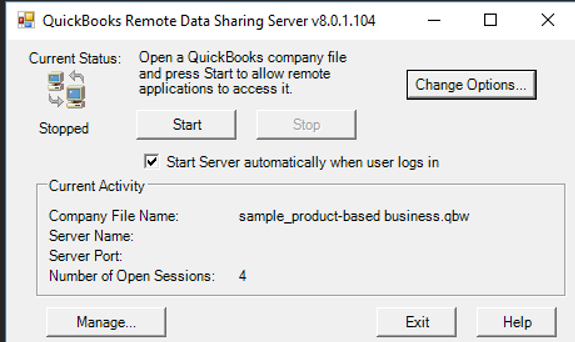
- Click on “Change Options” button to configure company file:
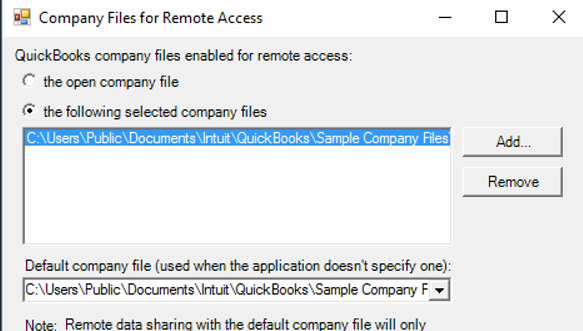
- Select company file which you want to sync data using Connector:
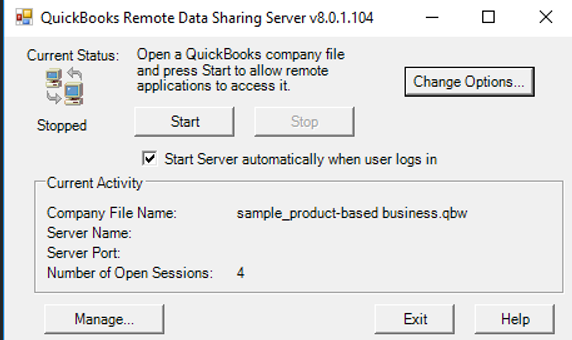
- Configure user login using “Manage…” button
- Configure login as shown in below screenshot:
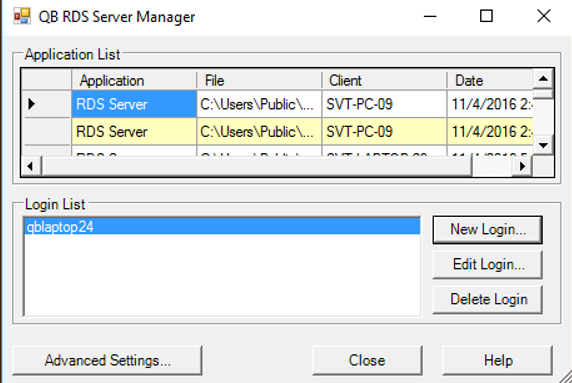
Create/Edit/Delete Login as per your requirement as shown in above screenshot.
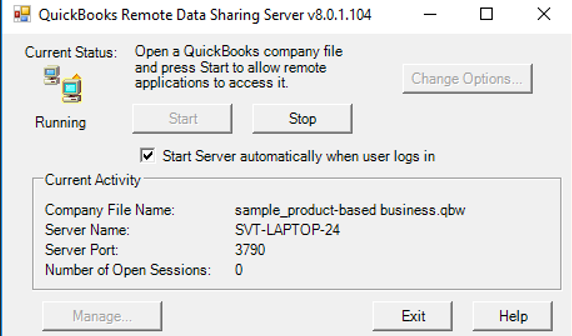
- Once you are done with configuration, click on Start button to listen incoming connections:
- Installation and Configuration of RDS Client:
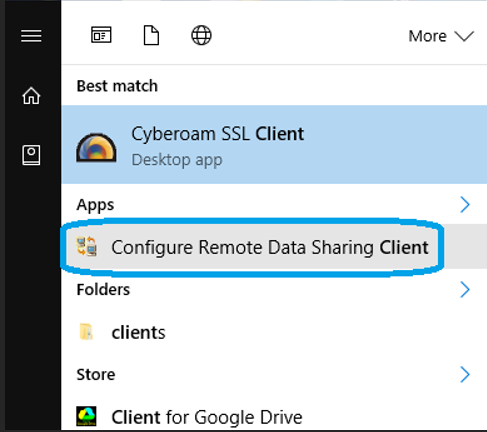
- Once you have installed RDS client, run it.
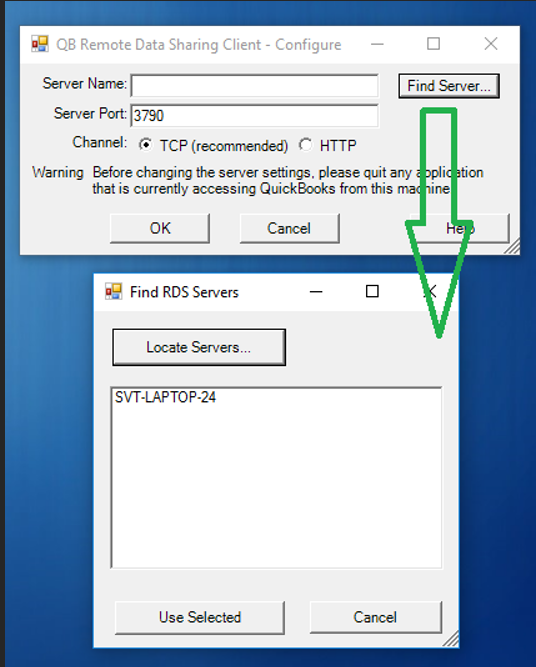
- Find RDS server and connect with it. Please refer below screenshot:
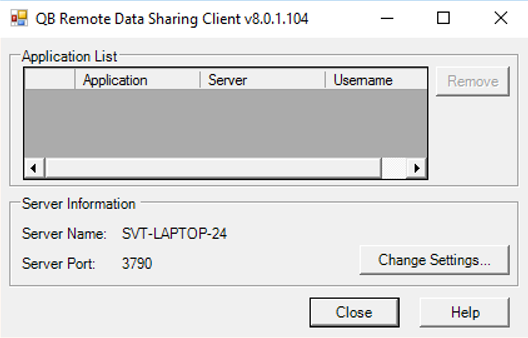
- We have prepared small utility to register our Connector application name with RDS server to talk with QuickBooks. We have uploaded it on FTP.
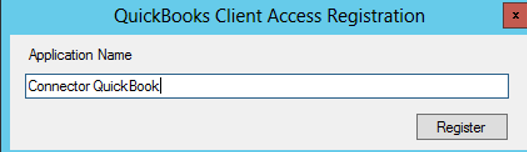
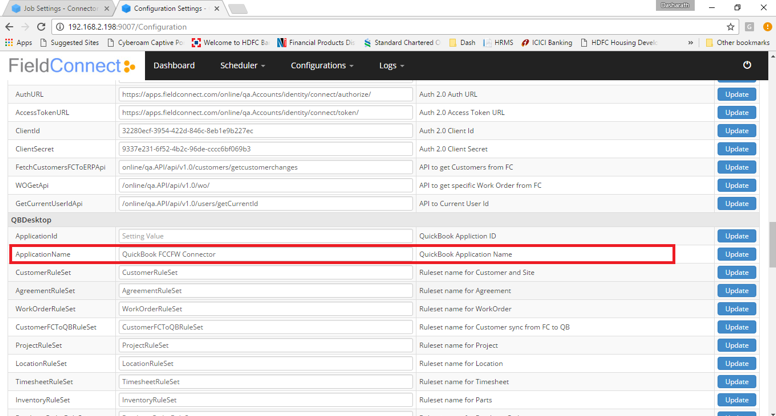
Enter name of application you have entered in configuration setting in Connector.
Click on “Register” button to register entered company name with RDS server and QuickBooks. You will prompt with following dialog box. Select appropriate radio button as shown in below screenshot.
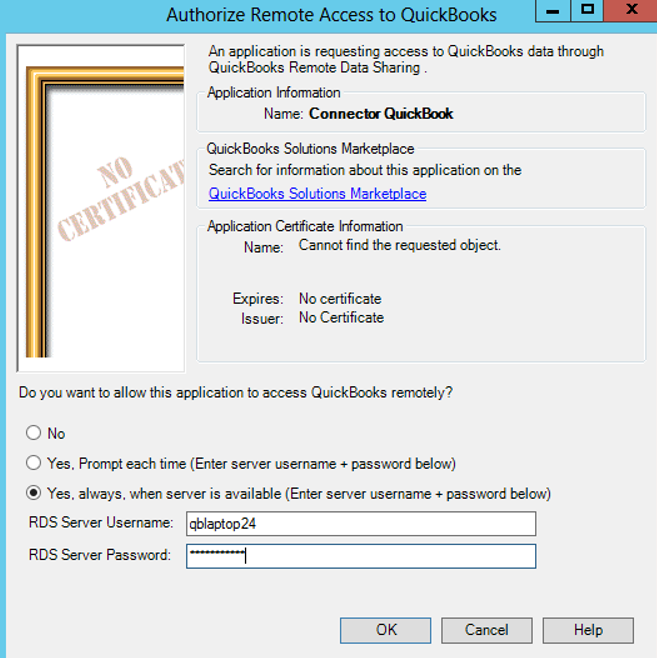
Please enter username and password which you have entered while configuring RDS Server.
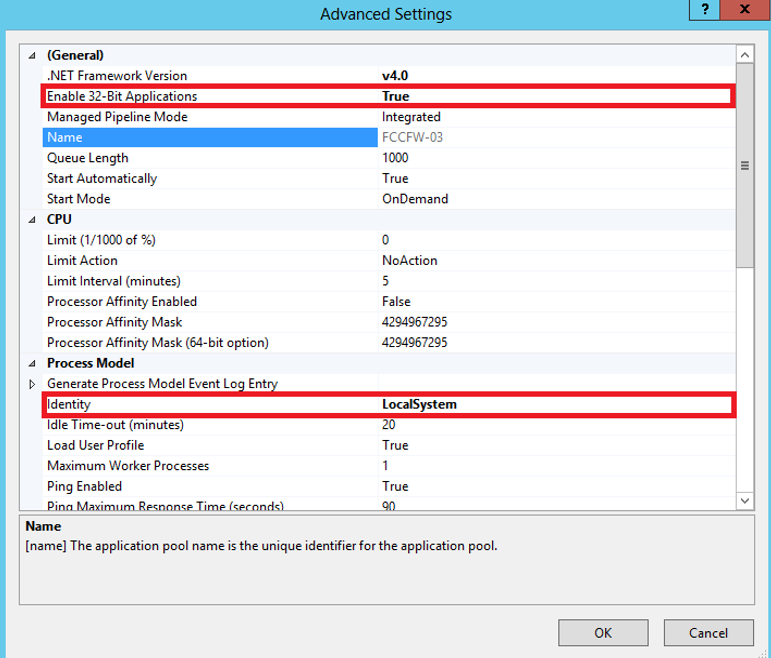
- AppPool settings:
- Set “Enable 32-Bit Application” to “true”
- Set “Identity” to “LocalSystem”
Please review below screenshot:
QuickBooks connectivity FAQ:
- If you are integrating ASP.NET application hosted in IIS with QuickBooks using QuickBooks SDK, you may get following errors:
“Could not start QuickBooks”
Answer:
It is a well-known limitation of the QuickBooks SDK that it does not work with hosted applications. The way the SDK works internally relies on a Windows GUI message pump to process data. Because a hosted IIS process won't have that available, direct COM connections don't work.
Please review below link for more detail:
We must have to use Remote Data Sharing Server, Remote Data Sharing Client to connect asp.net application hosted on IIS with locally installed QuickBooks.
- Remote Data Sharing Server:
Remote Data Sharing server is a window application and it is running under logged in user’s window context so there must be logged in user session to RDS server works.
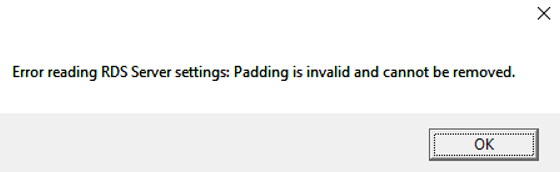
Only user that installed the RD server component can run it, so we must have to use user using which we installed RD Server.
RD server won’t run under another user account, you will get following error if you try to run RDS under another user account:
- Remote Data Sharing Client:
RDS client runs under any user account and it is window service so it does not required window UI context.
- Firewall settings:
Make necessary settings like open particular ports to access TCP connection in Firewall if required.
- Folder Permissions:
Change the folder permissions for C:\ProgramData\Log\Intuit (you may need to enable the viewing of hidden folders/files in file explorer)
Add/change permissions to “Full” for: IUSR, IIS_IUSRS and Users