![fieldconnect-logo-1000x118-light-bg.png]](https://knowledge.fieldconnect.com/hs-fs/hubfs/fieldconnect-logo-1000x118-light-bg.png?height=25&name=fieldconnect-logo-1000x118-light-bg.png)
Applies to: FieldAccess for Vista
Audience: Technicians
Overview
Use Miscellaneous Forms to fill out additional forms available through your company’s setup.
Before you begin
Open the trip associated with the work you are documenting. Confirm the correct work order and have the information needed to fill out the form.
1. Open Miscellaneous Forms
In the trip’s Forms section, click Misc. Forms.

Open Misc. Forms from the trip.
2. Select the form and work details
On the Miscellaneous Forms page:
- Select the appropriate Form Type.
- Verify or select the Work Order.
- Verify or select the Trip.
- Select the appropriate Serviceable Item, when applicable.
- Click Start a New Form.
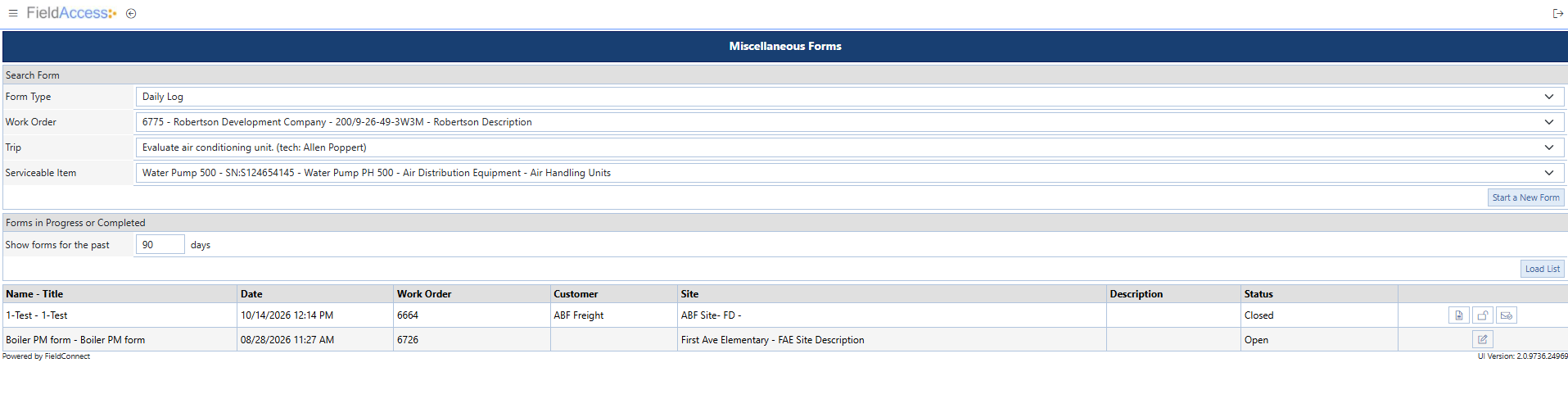
Select the form type and review the associated work details before starting a form.
3. Fill out the form
Enter a Description, if needed, to help identify the form.
Review any populated information, then enter the applicable details and any required signatures. Fields vary by form.
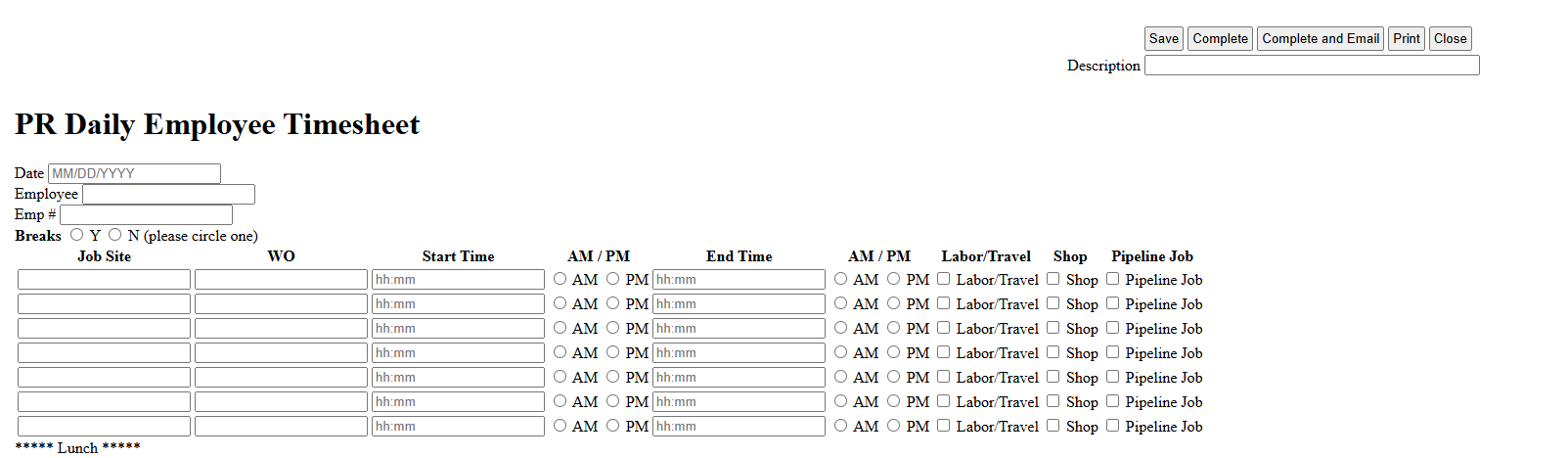
Enter a description and fill out the fields required for the selected form.
4. Save or complete the form
Choose the appropriate action:
- Save: Save your entries while keeping the form available for further work.
- Complete: Mark the form complete when all required information has been entered.
Wait for the confirmation message before closing the form.
The form also includes Complete and Email, Print, and Close controls.
5. Find and open existing forms
On the Miscellaneous Forms page, locate Forms in Progress or Completed.
- Enter the number of days in Show forms for the past.
- Click Load List.
- Locate the form using its name, date, work order, customer, site, description, or status.
- Use the Edit icon to continue an open form or the View icon to review a completed form.
Additional controls, such as reopening or emailing a completed form, may appear beside the form.
Things to know
- Available form types and fields depend on your company’s setup.
- Review the selected work order, trip, and serviceable item before starting a new form.
- Check the existing forms list before creating another copy.
- Save your entries before using Close.
- Completing a form does not complete the trip.