![fieldconnect-logo-1000x118-light-bg.png]](https://knowledge.fieldconnect.com/hs-fs/hubfs/fieldconnect-logo-1000x118-light-bg.png?height=25&name=fieldconnect-logo-1000x118-light-bg.png)
Purpose
This document describes the process for creating a new connection in OpenVPN. It will establish a steady VPN connection with the clients’ ERP server and our Azure network. The client runs hidden in the background as a Windows service. The connection will reconnect automatically if the server is rebooted and does not require a user to be logged in to stay connected.
Process
- Browse to OpenVPN admin portal: https://openvpn.fieldconnect.com:943/admin
- Log in as admin:
openvpn
field#1234
- Go to User Permissions on left menu
- Create connection name using company naming scheme
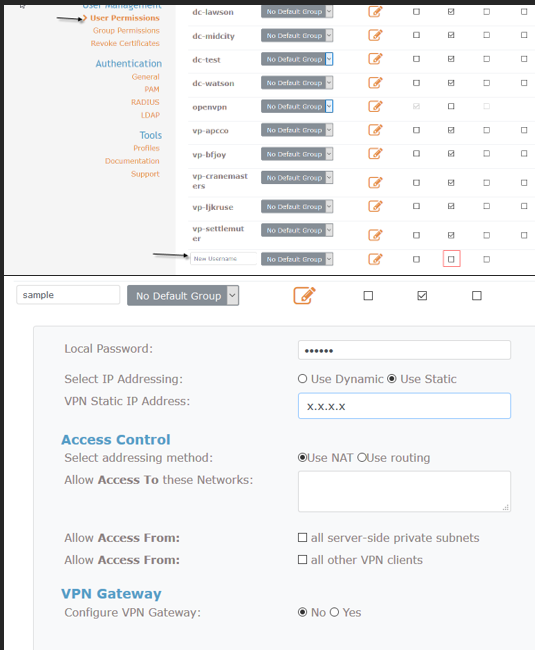
- Local Password is field#1234
- Check IP range in Sharepoint IT list. Set static IP as next available IP. Range should be 10.50.X.X
- Save Settings
- Update Running Server
- Browse to https://openvpn.fieldconnect.com
- Login as newly created user
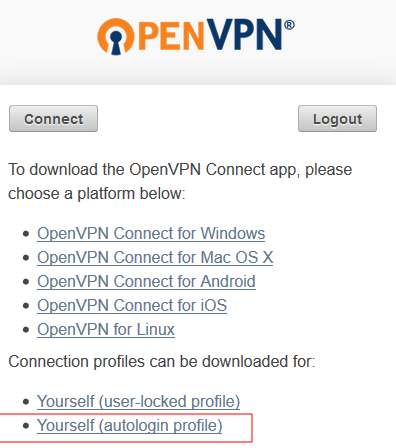
- Download Yourself (autologin profile) to download the config file for the company
- Installation of client
- Copy OpenVPN installation file and config file to client ERP server
- Run installation file while logged in as a user with admin access
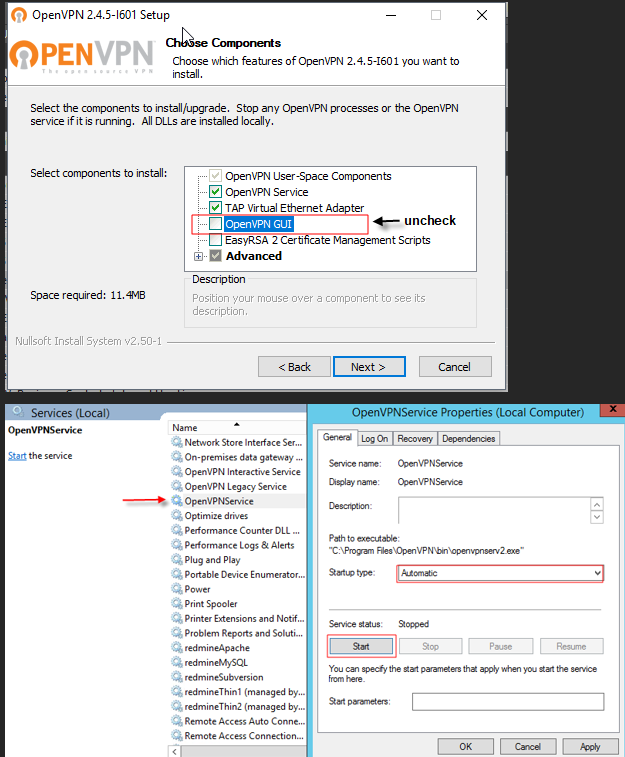
- Uncheck OpenVPN GUI in the components
- After installation is complete, copy config file to C:\Program Files\OpenVPN\Config
- Go to Windows Services (services.msc)
- Set OpenVPN Service to automatic and start it
- Installation is complete
- Verify connection under Current Users in Open VPN admin portal
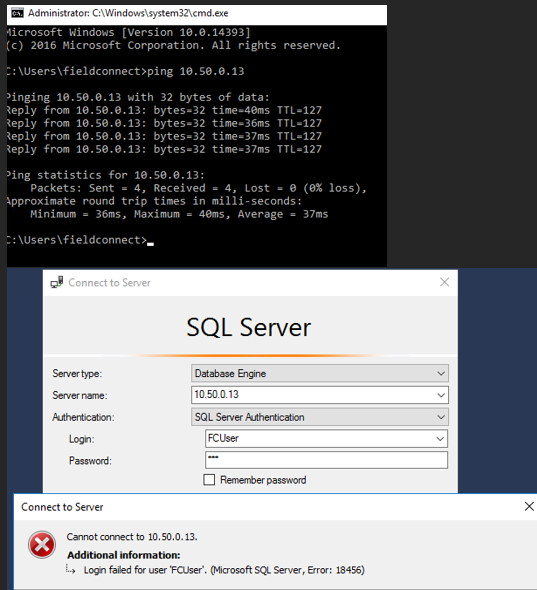
- Ping VPN IP from an Azure VM to the newly created connection
- Verify SQL connection as well using the VPN IP
- Login using SQL Authentication with any credentials
- If the connection is good, it will say “Login failed for user”